What you’ll need
Paste this, then approve the pop-ups
It builds the app, sets up your settings with you and runs a test, and that’s the whole recipe.
Paste into your AI coding tool
Set up the Dictation app on my Mac from https://github.com/louievillaverde/build-your-own-dictation. Do every step yourself and only stop when you need me to click or choose something.

1. Clone it to ~/dictation and read the README.
2. Make sure Apple's Command Line Tools are installed (not the full Xcode app). If they aren't, start the install and wait for me to finish it.
3. Ask me if I want Deepgram for faster, more accurate transcription (free $200 credit, no card). If yes, open https://console.deepgram.com/signup, walk me through creating an API key, have me paste it here, and save it as DEEPGRAM_API_KEY in ~/.dictation-secrets.env (chmod 600). If no, skip it. The app uses Apple's on-device speech.
4. Run ./build.sh and fix anything that fails until Dictation.app is installed.
5. Open Dictation and tell me which permission pop-ups to approve (Microphone and Accessibility, maybe Speech Recognition). Restart it once Accessibility is on.
6. Set it up the way I like it. Ask me, then set each one in Dictation's Settings (the menu bar icon): which key I hold to talk, whether to pause my music while I talk, which look I want (Deep Water, On Air or Neo Noir), the names and words it should always spell right, and whether it should launch at login.
7. Set up a weekly check (a launchd job) that runs git fetch in ~/dictation and shows me a Mac notification when the repo has updates. Don't install updates automatically.
8. Have me hold my talk key, say a sentence and let go, then confirm it typed.
Stuck? Message me on LinkedIn and I’ll help you get it running.
How to use it
These are the defaults. You can change any of the keys in Settings.
- Hold your keyTalk, let go, and it types where your cursor is
- Double-tapHands-free for longer thoughts, tap again to finish
- EscCancel a take
- ⌃⌥VPaste your last dictation again
- ⌃⌥FFix highlighted text, or hold it and say how to change it
Where it’s best
Prompt your AI
Talk through the context instead of typing it.
Email and chat
Replies in your own voice, without the typing.
Notes after a call
Say what happened while it’s fresh.
Docs and drafts
Get a first draft out, then edit.
Posts
Say the idea out loud and tidy it after.
Anywhere else you type
If your cursor’s in it, you can talk into it.
The Lead Piranha Playbook
Get the next build like this every Tuesday.
One job automated for good each week, with the prompt to copy.
No spam, unsubscribe anytime.
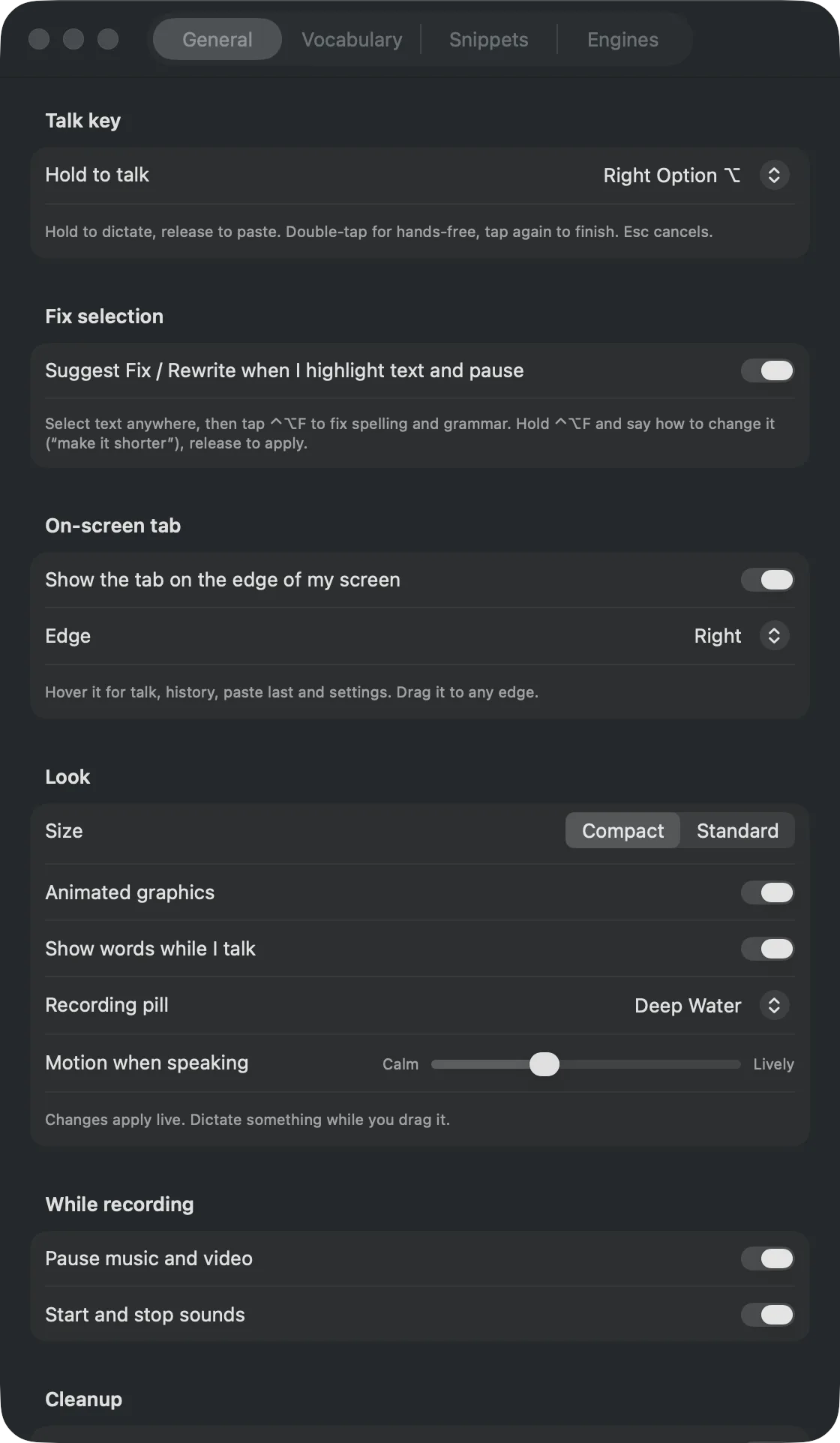
Already in Settings
Click the menu bar icon anytime to change these, no prompts needed.
Three looks, built in
Pick one in Settings. We’ll release new ones from time to time.
Or keep it Plain Jane
Make it yours
These aren’t built in yet, so once the app’s running, hold your talk key and read any of these into your AI coding tool, filling in the [brackets].
Design your own look
Paste into your AI coding tool
Add a new recording pill style to my Dictation app that looks like [your idea: an object, two colors, how it moves when I talk], and add it to the Look picker in Settings.
Send dictations to another app
Paste into your AI coding tool
Add a setting to my Dictation app that also sends every dictation to [Apple Notes / Notion / my CRM].
Open apps by voice
Paste into your AI coding tool
Add voice commands to my Dictation app, so saying "open [app name]" opens it instead of typing the words.
A different tone per app
Paste into your AI coding tool
In my Dictation app, make the AI cleanup write more casually in [Slack / Messages] and more formally in [Mail].